Aster — Markdown Studio
A downloadable tool
✦Aster
FeaturesGetting startedShortcutsRequirements
Markdown Studio for Windows
Aster
A comfortable home for your Markdown.
Create notes, write technical documentation, and read long documents in a focused desktop workspace—with live preview, mathematics, diagrams, and PDF and HTML export.
Work with ordinary Markdown files on your computer. Aster brings editing, reading, navigation, and export together without an account or cloud service.
- Windows desktop · x64
- Installer + portable edition
- Offline editing and rendering
- Version 1.0.1
From a quick note to a technical document
Aster is built for writers, developers, students, researchers, and anyone who prefers readable plain-text documents. Use familiar Markdown syntax, then see the formatted result as you write.
A capable tabbed editor
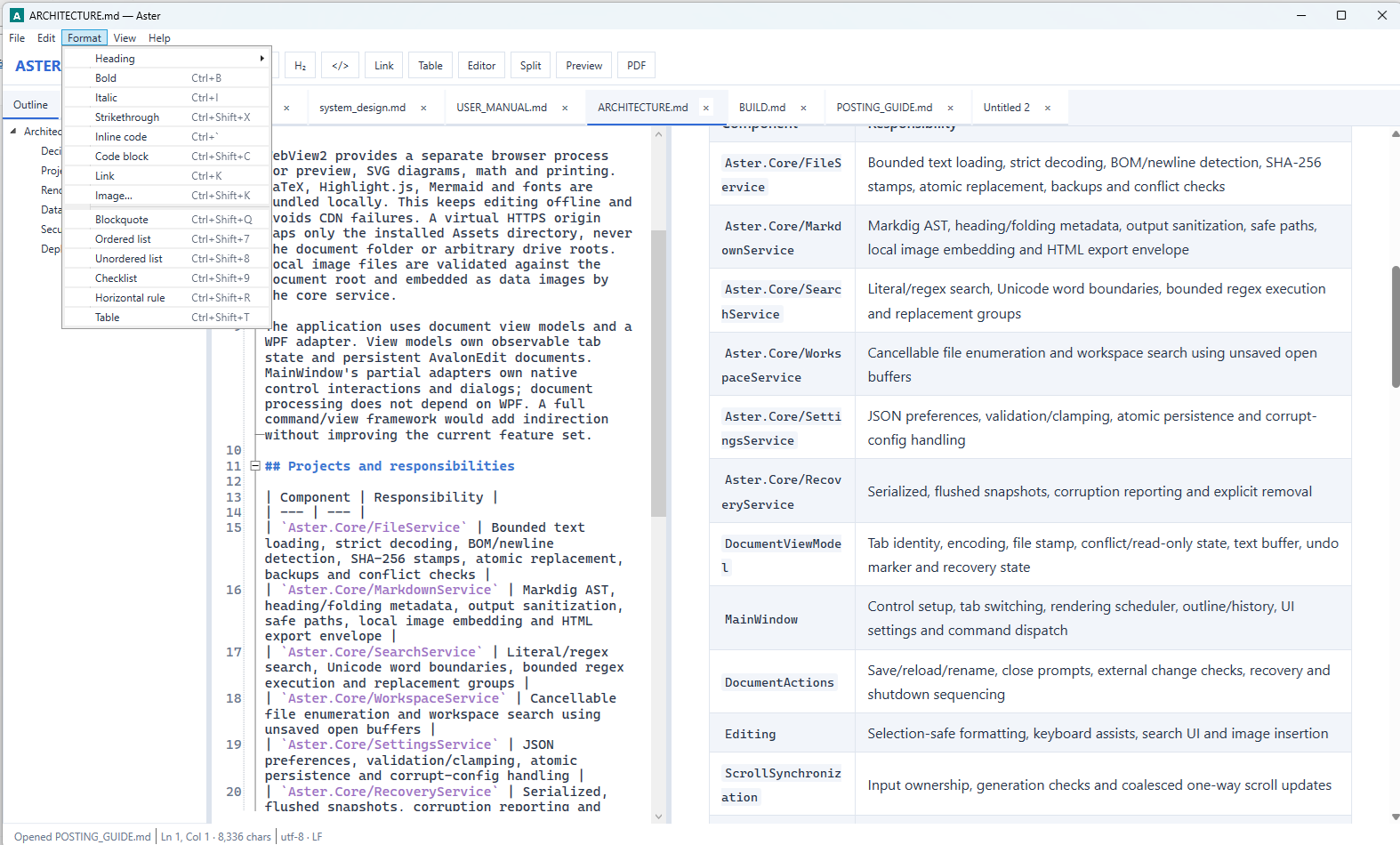
Keep multiple documents open with independent undo histories. Markdown highlighting, line numbers, folding, automatic indentation, smart list continuation, and formatting commands make everyday editing easier.
Write and read your way
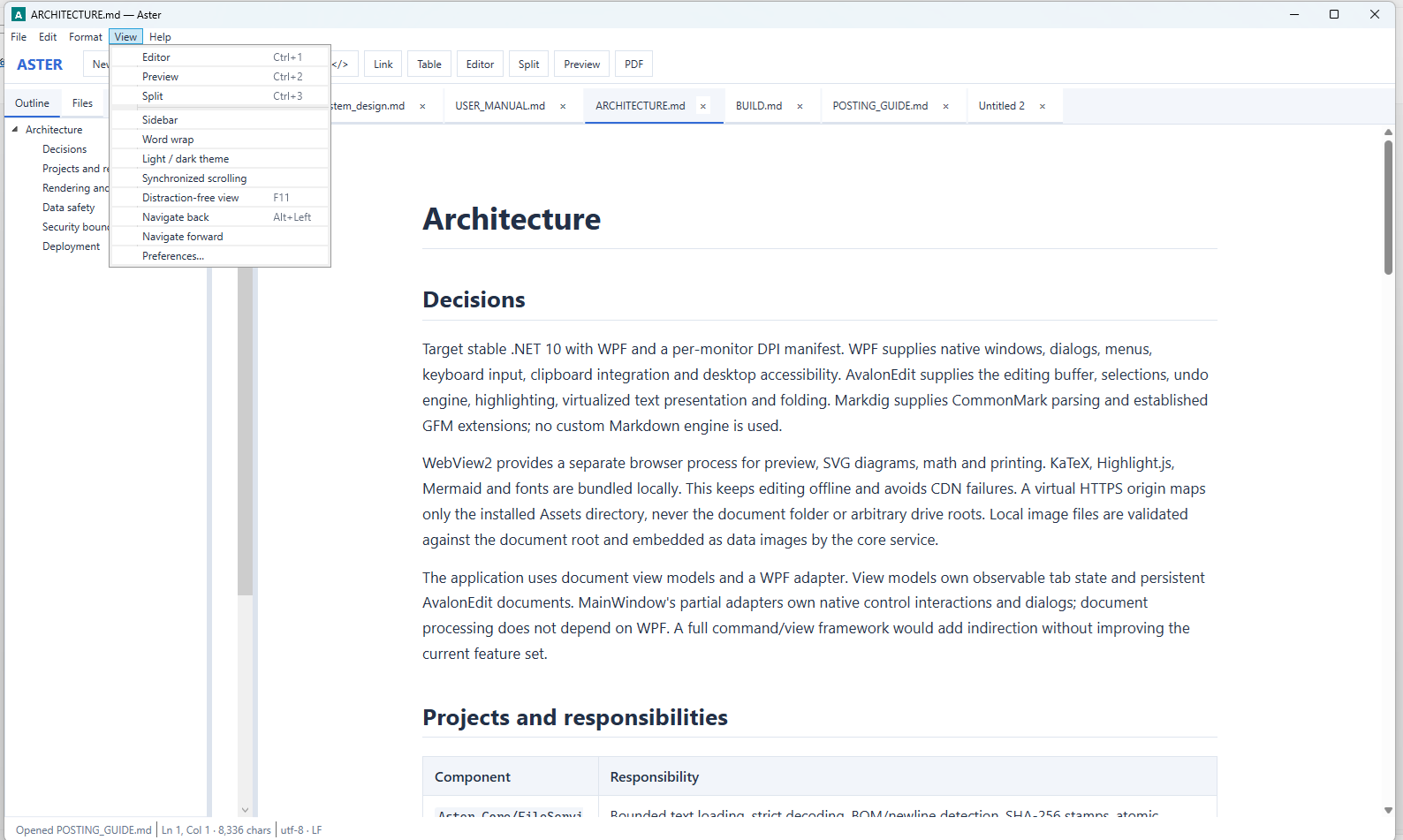
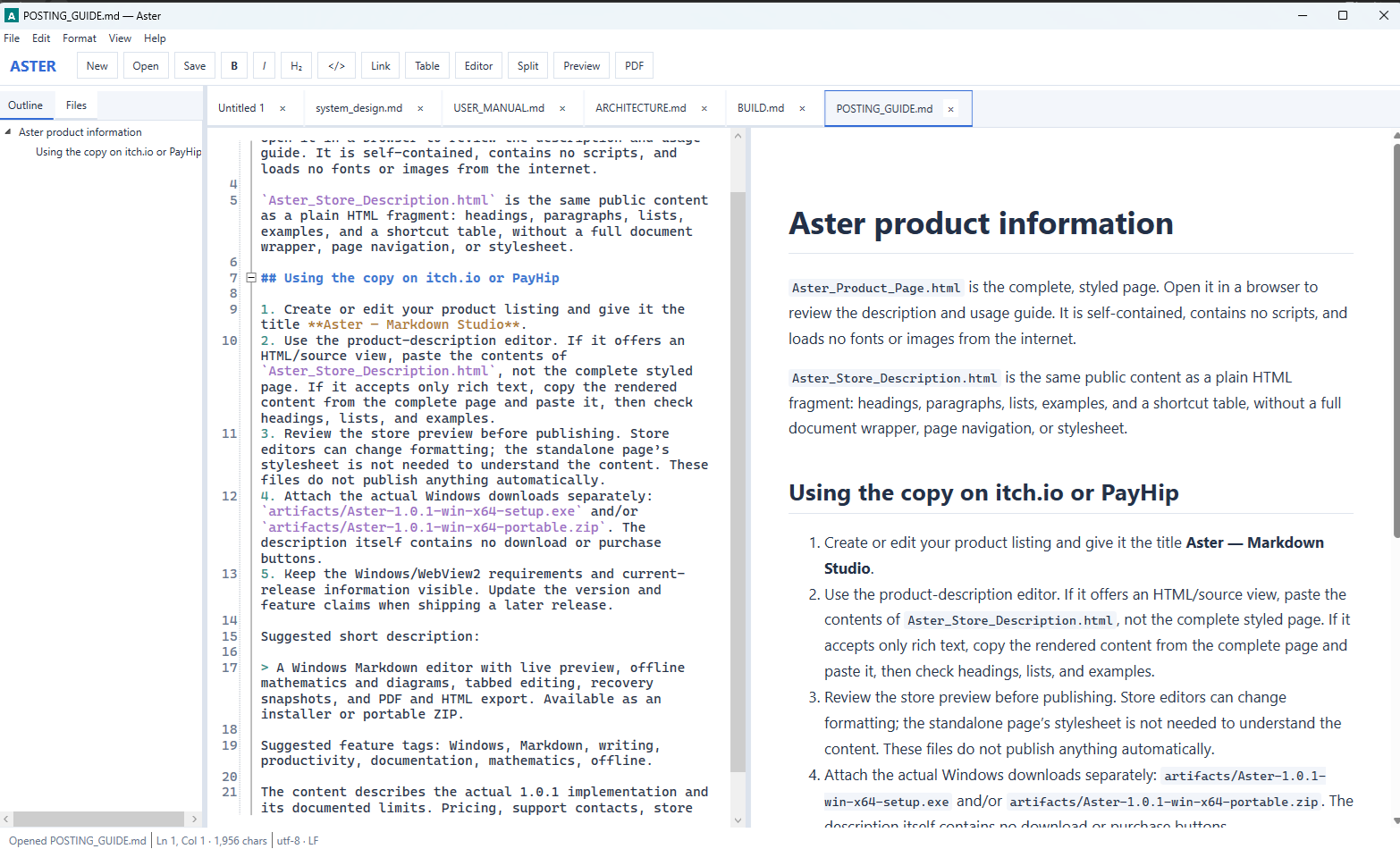
Choose Editor, Preview, or Split view. Resize the panels with draggable dividers, switch between light and dark themes, adjust fonts, enable word wrap, and use full-screen reading. Optional synchronized scrolling follows the pane you are using.
Mathematics included
Render inline and display equations with bundled KaTeX. Use fractions, integrals, sums, Greek symbols, matrices, aligned equations, and more. Rendered mathematics is preserved in PDF and HTML exports.
Readable code and diagrams
Highlight common languages including C, C++, C#, Python, JavaScript, TypeScript, Java, SQL, and PowerShell. Copy code from the preview, scroll wide blocks horizontally, and draw Mermaid flowcharts, sequences, class diagrams, state diagrams, and Gantt charts.
Navigate and organize
Jump through a hierarchical heading outline, collapse document sections, browse a folder workspace, and search across its files. Find and replace supports regular expressions, case-sensitive matching, and whole words.
Tables, tasks, and images
Preview GitHub-style tables and task lists, nested lists, blockquotes, footnotes, and links. Insert local raster images or paste an image from the clipboard into a document-relative assets folder.
Export and share
Create PDF documents with A4 or US Letter pages, portrait or landscape orientation, margins, and optional title and page numbers. Export a document or selection to HTML. Embedded local images, rendered equations, diagrams, and math fonts travel with the HTML file.
Keep control of your work
Unsaved-change prompts, atomic file replacement, backups, external-change checks, and configurable recovery snapshots help protect your documents. Aster adds no telemetry, advertisements, document uploads, or account requirements. Remote images are disabled by default.
Get started in a few minutes
Install—or go portable
Run the Windows installer and launch Aster from the Start menu. Installation is per user and does not require administrator privileges. Optional Open With integration is available during setup.
For portable use, extract the entire ZIP, open theAsterfolder, and runAster.exe. Keep the executable and its companion files together.Open a document or start a new one
Press Ctrl+O to open one or more files, drag files onto the window, or press Ctrl+N for a new document. Aster supports.md,.markdown,.mdown, and.txt. Each document opens in its own tab.Choose your view and write
Select Editor, Preview, or Split from the View menu or toolbar. In Split view, type on the left and watch the formatted preview update on the right. Use the Format menu or toolbar for headings, bold, italic, code, links, lists, tables, and more.Save and organize
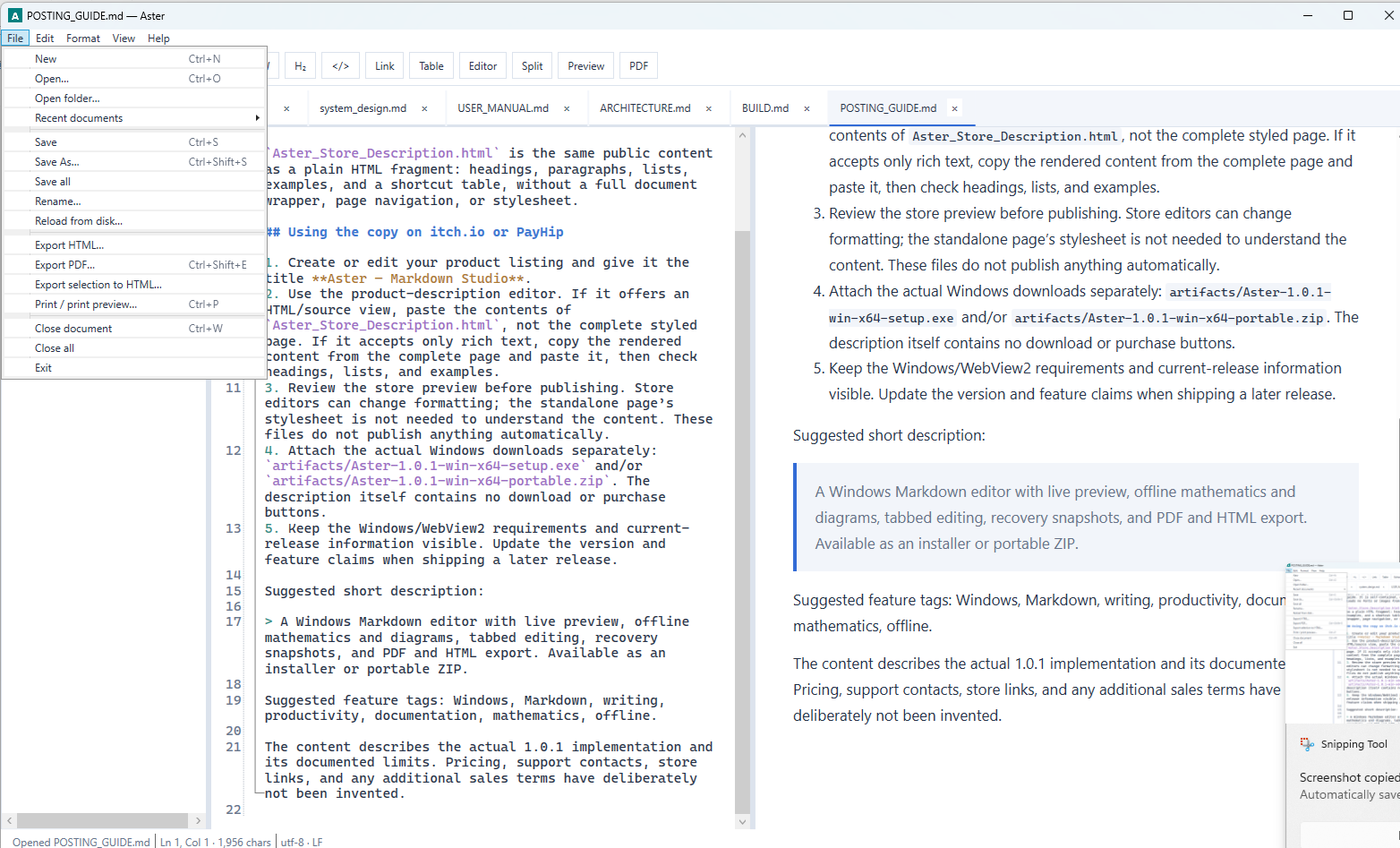
Press Ctrl+S to save or Ctrl+Shift+S for Save As. A dot on a tab indicates unsaved changes. Open a folder from the File menu to browse documents and search the workspace; use the Outline panel to jump between headings.Export the finished document
Choose File → Export HTML or press Ctrl+Shift+E for PDF. Set PDF paper size, orientation, margins, and long-code wrapping in Preferences. Use Ctrl+P for the browser print preview and print dialog, and review complex page layouts before sharing.
Make it comfortable: Preferences lets you adjust editor, preview, and code font sizes, indentation, preview delay, recovery behavior, and export defaults. The View menu controls theme, word wrap, and synchronized scrolling.
A little Markdown goes a long way
Type these examples into a document and switch to Split view. Code, mathematics, and diagrams use local, bundled renderers.
Notes, tasks, and equations
# Research notes

Write **bold text**, *emphasis*, and a [link](https://example.com).

- [x] Collect references
- [ ] Draft the explanation

Inline mathematics: $E = mc^2$

$$
\int_0^1 x^2\,dx = \frac{1}{3}
$$
Bracket delimiters \( ... \) and \[ ... \] also work. For documents full of currency values, disable dollar mathematics in Preferences and use bracket delimiters for equations.
Code and a flowchart
```python
def greet(name):
    return f"Hello, {name}!"
```

```mermaid
flowchart LR
    Draft --> Review --> Publish
```
Put the language name after the opening code fence to enable highlighting. Use mermaid for a diagram. The preview displays rendering errors so you can correct them before export.
Useful everyday workflows
- Find something quickly: Ctrl+F or Ctrl+H opens find/replace. Use Ctrl+Shift+F for workspace search after opening a folder. Double-click a workspace result to navigate to it.
- Add an image: save the document first, then use Insert Image or paste an image from the clipboard. Aster creates a uniquely named file in the document’s
assetsfolder. Local images must be inside the document folder tree. - Resize an image: write
{width=320}to set a preview width in pixels while preserving its aspect ratio. - Edit a table: insert one from the Format menu, then use Tab and Shift+Tab to move between cells on a Markdown table row.
- Read without distractions: choose Preview view, adjust the preview font size, and press F11 for full screen. Press F11 or Esc to leave it.
- Use remote images deliberately: enable HTTPS images in Preferences if a document needs them. This allows requests to those image hosts; remote images remain remote references in HTML exports.
Keep your hands on the keyboard
| Action | Shortcut |
|---|---|
| New / Open | Ctrl+N / Ctrl+O |
| Save / Save As | Ctrl+S / Ctrl+Shift+S |
| Close tab | Ctrl+W |
| Undo / Redo | Ctrl+Z / Ctrl+Y |
| Find or replace / Workspace search | Ctrl+F or Ctrl+H / Ctrl+Shift+F |
| Bold / Italic / Link | Ctrl+B / Ctrl+I / Ctrl+K |
| Heading levels 1–6 | Ctrl+Alt+1 through Ctrl+Alt+6 |
| Editor / Preview / Split | Ctrl+1 / Ctrl+2 / Ctrl+3 |
| Go to line | Ctrl+G |
| Export PDF / Print preview | Ctrl+Shift+E / Ctrl+P |
| Full screen / Exit full screen | F11 / F11 or Esc |
Native editing shortcuts apply while the editor or menu controls have focus. If the browser preview has focus, click the editor or menu first.
Save normally. Recover carefully.
Aster asks before closing modified documents and detects external changes rather than silently replacing a newer disk file. When a file changes elsewhere, review it before choosing Reload, or use Save As to preserve your editor version separately.
Recovery snapshots are enabled by default every 30 seconds and can be configured in Preferences. They are separate from saving: they do not update your document file. After an unexpected shutdown, available snapshots reopen as unsaved recovered copies. Review them and use Save As; the original file is not replaced during recovery.
Replacing an existing file creates a backup in its sibling .aster-backups folder. Existing encodings and line endings are preserved where detected; new documents and Save As use UTF-8.
Continue to save regularly: a hard crash can lose changes made after the latest completed snapshot. Backups are not automatically pruned. Installed preferences and recovery live in %LOCALAPPDATA%\Aster; portable data lives in portable-data beside the executable.
What you need
Windows, local files, and WebView2
- Target platform: Windows 10 22H2 or Windows 11, x64. This is a native Windows desktop application.
- Preview and export: Microsoft Edge WebView2 Evergreen Runtime is required. If it is missing, obtain it from Microsoft’s WebView2 download page. Editing and saving remain available if the preview cannot initialize.
- .NET runtime: included in the installer and portable distribution; no separate .NET installation is needed for those packages.
- Internet: not needed for ordinary editing, bundled mathematics, diagrams, or embedded local content after setup. Runtime installation, remote images, and opening web links may require a connection.
- Delivery: Windows installer and portable ZIP, with a user manual, release notes, and third-party license notices.
About the current release
Aster 1.0.1 includes the fix for editor/preview wheel-scroll oscillation. The application has been built and tested on Windows 11, including native editing, recovery, rendering, and PDF/HTML export checks. It is a tested release candidate and the binaries are unsigned. Windows 10 deployment and physical-printer validation remain unverified.
Current limits: documents up to 64 MB and local raster images up to 20 MB. Scroll synchronization is proportional rather than exact paragraph alignment. Multicursor editing, unrestricted raw HTML, PDF outline bookmarks, and automatic reopening of clean tabs are not included; use Recent documents to reopen files. Unavailable images, unsupported math, and invalid diagrams need correction before export. Review complex PDF pagination, especially long code blocks and large tables.
Aster · Markdown Studio · Product information for version 1.0.1
Purchase
In order to download this tool you must purchase it at or above the minimum price of $3.55 USD. You will get access to the following files:
Leave a comment
Log in with itch.io to leave a comment.